Console tour
What it is and why use it
The Vex Raptor console is the web application where you run authorized security tests, read findings, and manage your organization. This page maps each menu item to its purpose so you know where to go first.
Before you start
- An account on your organization's Vex Raptor instance (hosted or self-hosted).
- Viewer users can read reports; admin users can change settings, API keys, and integrations.
- Some menus require a higher plan (Pro or Enterprise). If a item is missing, ask your administrator.
Step by step
- Sign in and land on the Dashboard (
/dashboard).
-
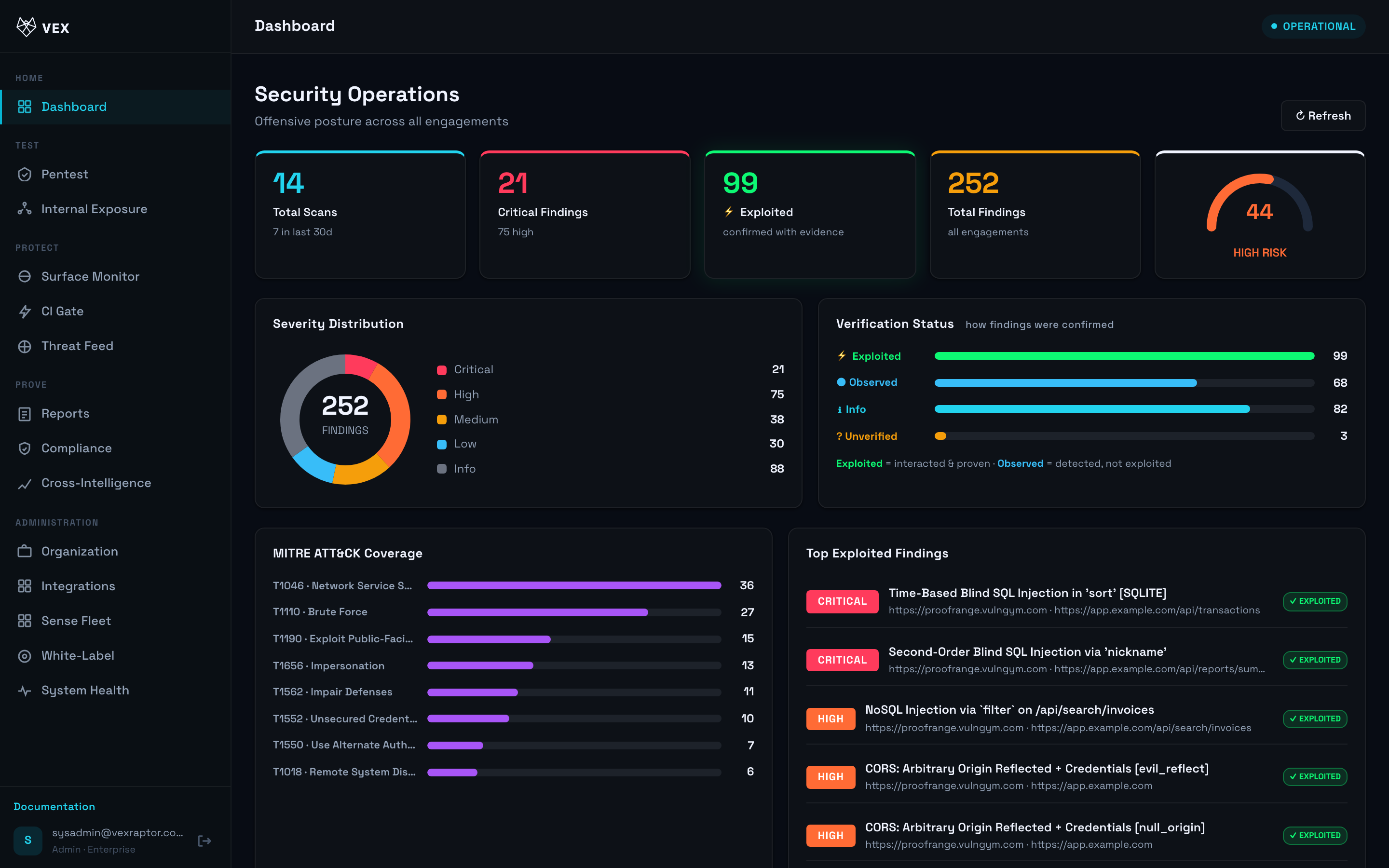
Home — Dashboard — summary of recent activity and risk posture.
-
Test — Pentest — start a new scan (
/scan). API Scanner (when enabled) opens the same form with API/OpenAPI mode (/scan?mode=api). -
Test — Internal Exposure (Enterprise) — map internal assets reported by sensors (
/network). -
Protect — Surface Monitor (Pro+) — recurring external attack-surface scans (
/asm). -
Protect — CI Gate (Pro+) — rules and webhooks for pipelines (
/triggers). -
Protect — Threat Feed (Enterprise) — curated threat intelligence (
/threat-feed). -
Prove — Reports — findings, PDF export, remediation checks (
/results). -
Prove — Compliance — map findings to control frameworks (
/compliance). -
Prove — Cross-Intelligence (Enterprise) — correlate scans across targets (
/intelligence). -
Administration — Organization — members, plan usage (
/orgs). -
Administration — Integrations — outbound connectors (
/integrations). -
Administration — Sense Fleet — register and monitor Vex Sense sensors (
/sense-fleet). -
Administration — White-Label (Enterprise) — PDF/console branding (
/branding). -
Administration — System Health — dependency readiness (
/health). -
Optional advanced navigation (when your instance enables it): Swarm (
/swarm), Security Audit (/security-audit), API Explorer (/api-explorer).
What you will see
The left sidebar groups features into Home, Test, Protect, Prove, and Administration. Your role and plan control which links appear.
Common problems
- Menu item missing — your role may be viewer-only, or your plan may not include the feature. Admins can confirm under Organization.
- Redirected to Dashboard — you opened a route your plan does not allow; use this tour to find an allowed alternative.
Next steps
- First scan — register (if enabled), verify email, run a pentest.
- Run scans — form options in detail.
- Glossary — key terms.