Sense Fleet
What it is and why use it
Sense Fleet registers and manages Vex Sense sensors (edge devices) that scan approved internal networks and check in to your organization.
Before you start
- Organization admin.
- Physical or virtual Sense device with serial number.
- Plan: Free tier and above for fleet UI (billing may apply per your contract).
Step by step
- Open Sense Fleet (
/sense-fleet).
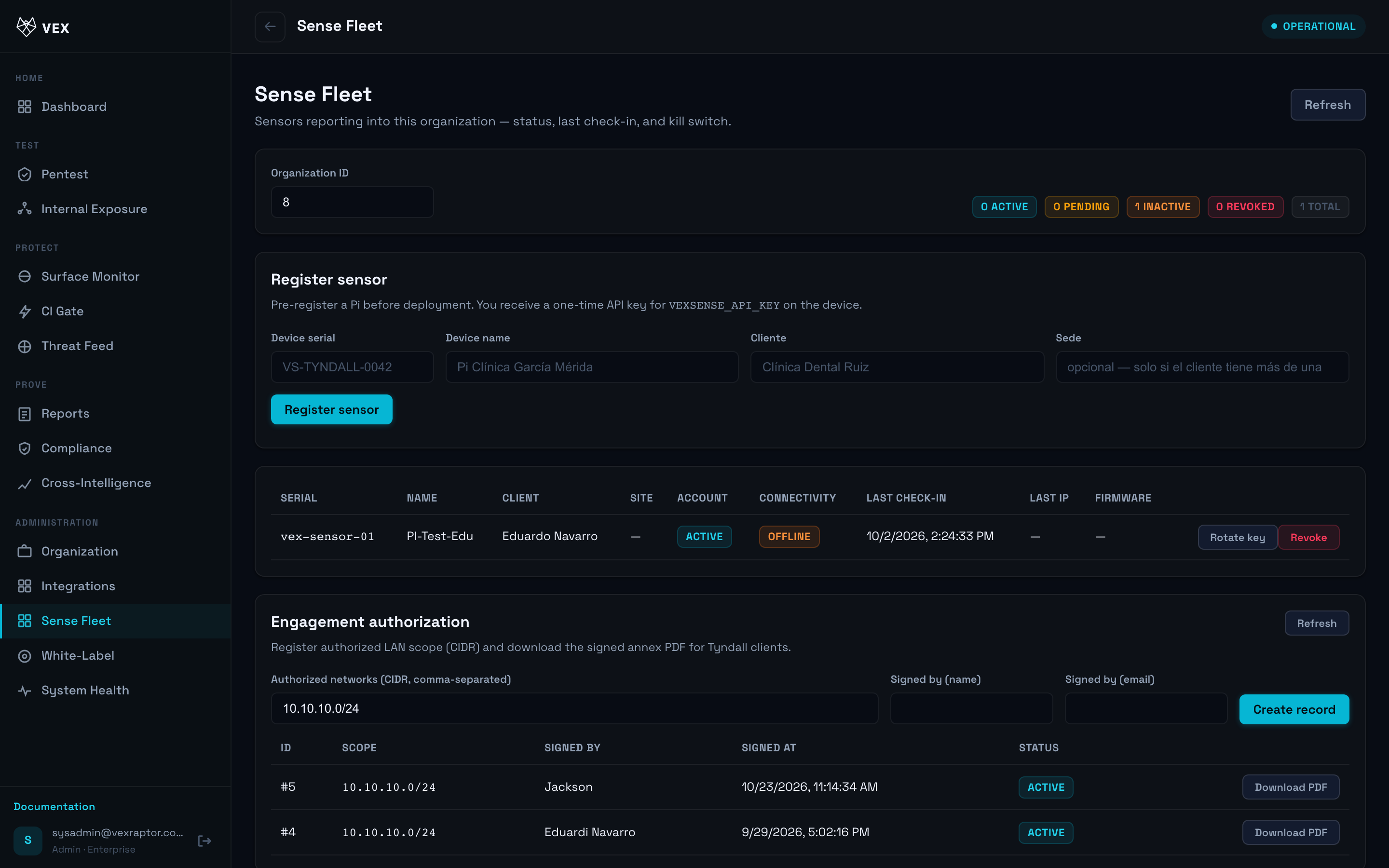
- Under Register sensor, enter device serial, display name, Client name, and optional Site label, then submit.
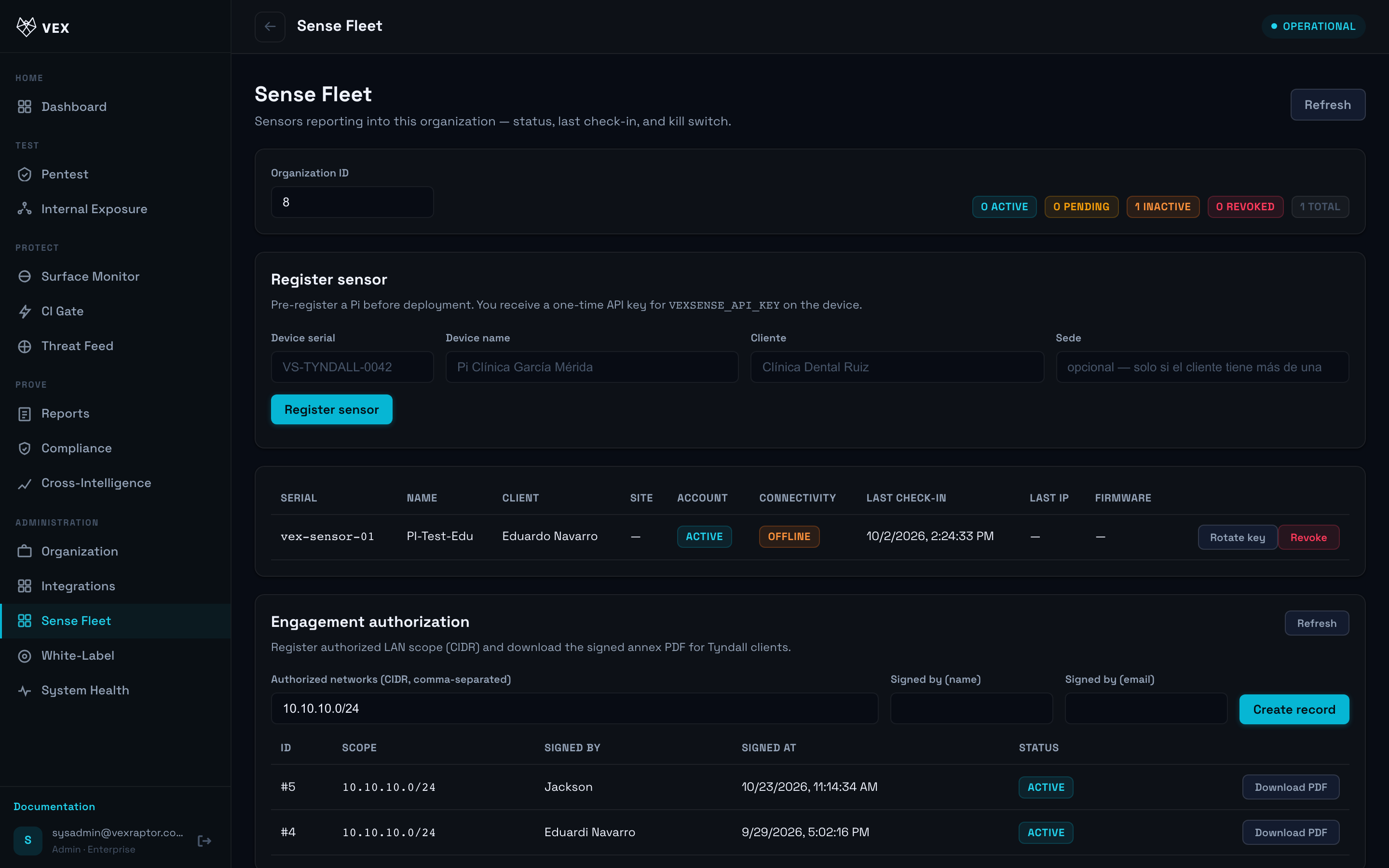
- Copy the one-time API key shown once into
VEXSENSE_API_KEYon the device. Keys expire per your org policy — rotate before expiry.
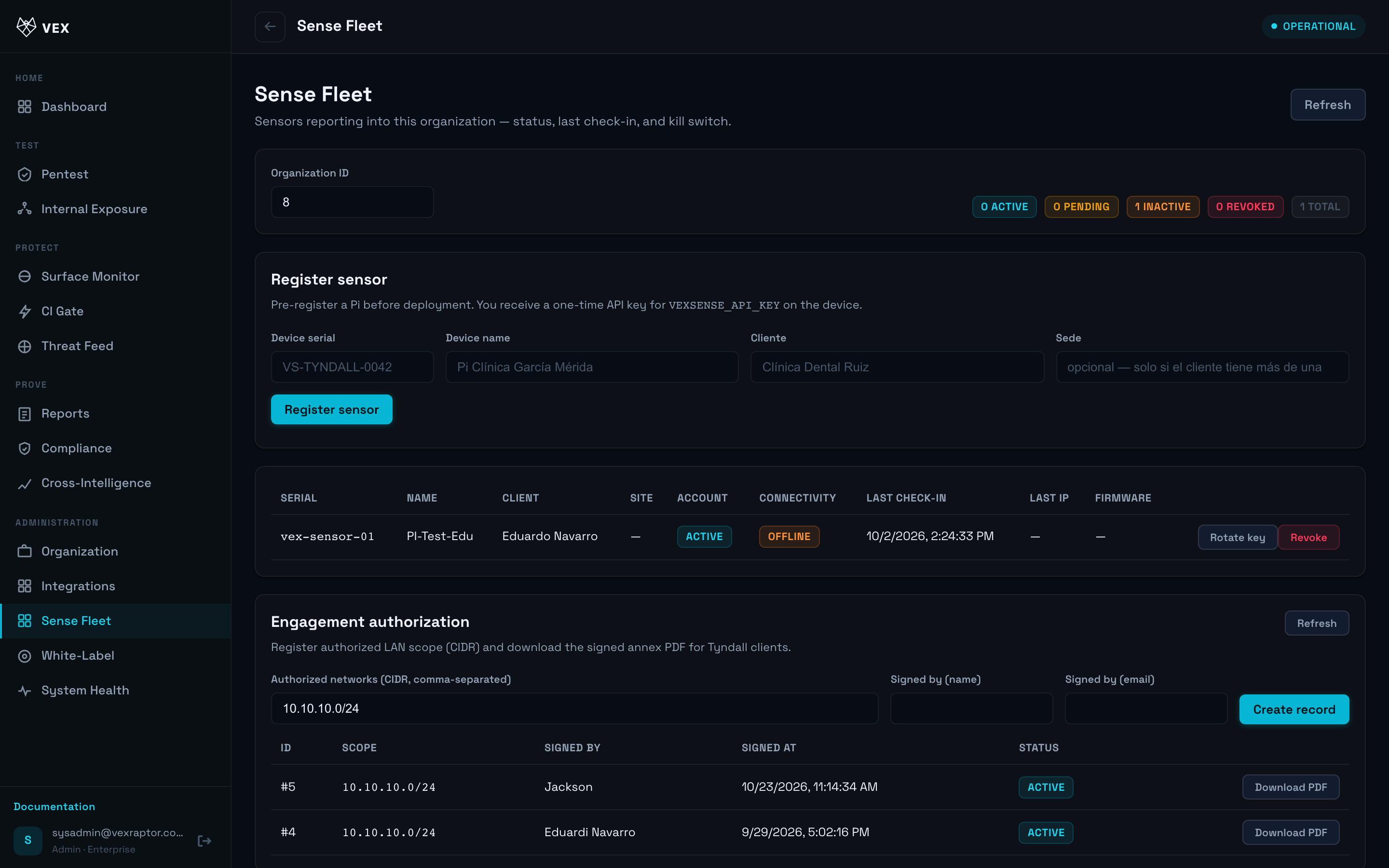
- After the device checks in, read two separate indicators:
- Account status —
pending,active,inactive, orrevoked(billing and admin lifecycle). -
Connectivity —
Onlinevs offline derived from last check-in time (UTC in the console). -
Use Refresh to update counts: active, pending, inactive, revoked.
-
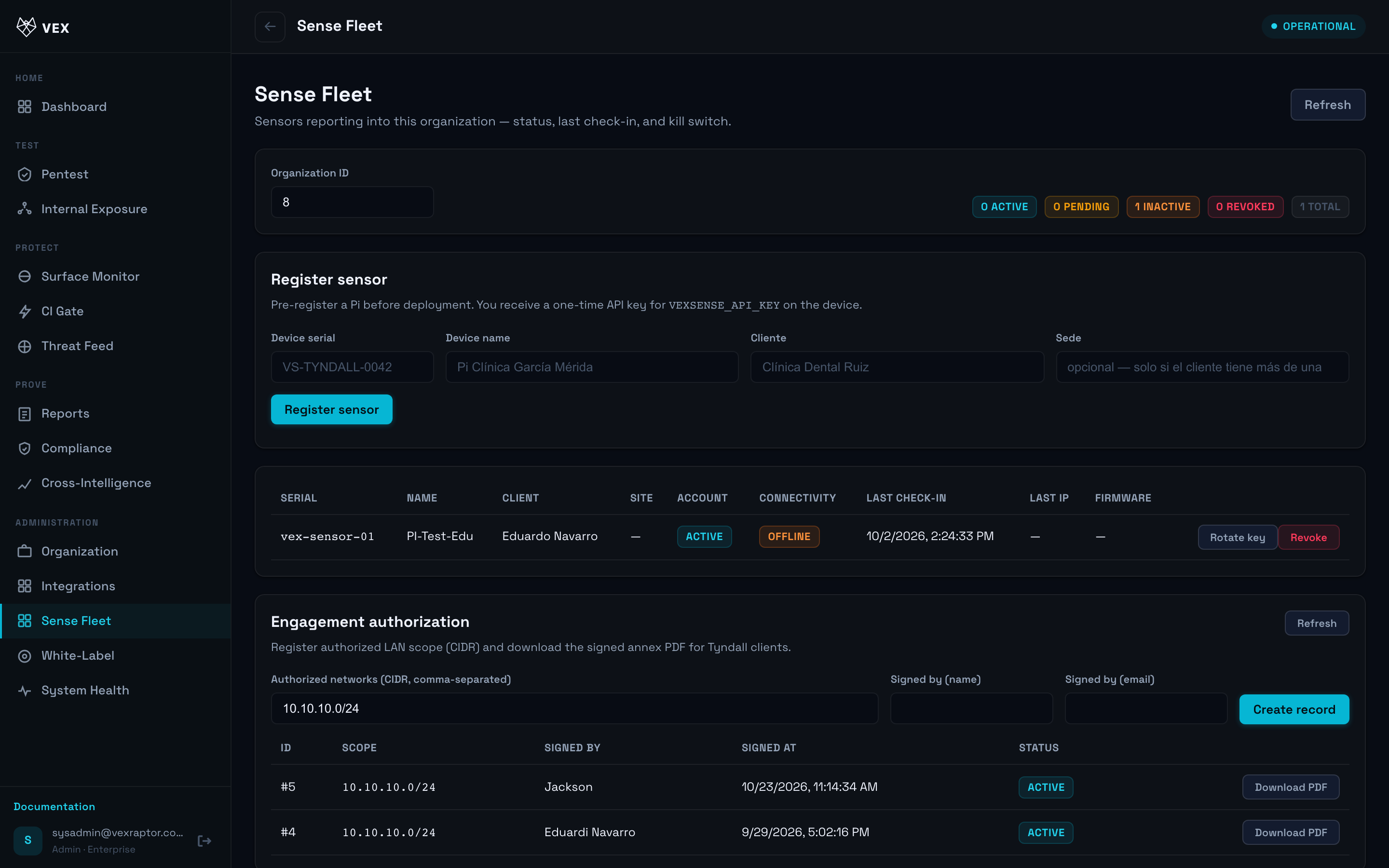
Revoke or rotate keys from the device row actions when compromised.
What you will see
Usage badges at the top, per-device last check-in (UTC), scan health signals when reported by the sensor, and kill-switch style actions for admins.
Common problems
- Pending forever — API key not configured on the device or wrong org key.
- Active but offline — account is entitled but device has not checked in recently; check network path to your Vex Raptor URL.
- Key expired — generate a new key from the device actions menu.