First scan
What it is and why use it
This tutorial walks you from account access through your first authorized pentest in the console. For Docker deployment and CLI admin creation, see Quickstart.
Before you start
- Written permission to test the target URL.
- For production deployments scanning external hosts, complete domain verification when the console prompts you (DNS TXT or HTTP file).
- A role that can start scans (admin or member per your org policy).
Step by step
- Open your console URL and choose Register if your instance allows public signup; otherwise use credentials from your administrator.
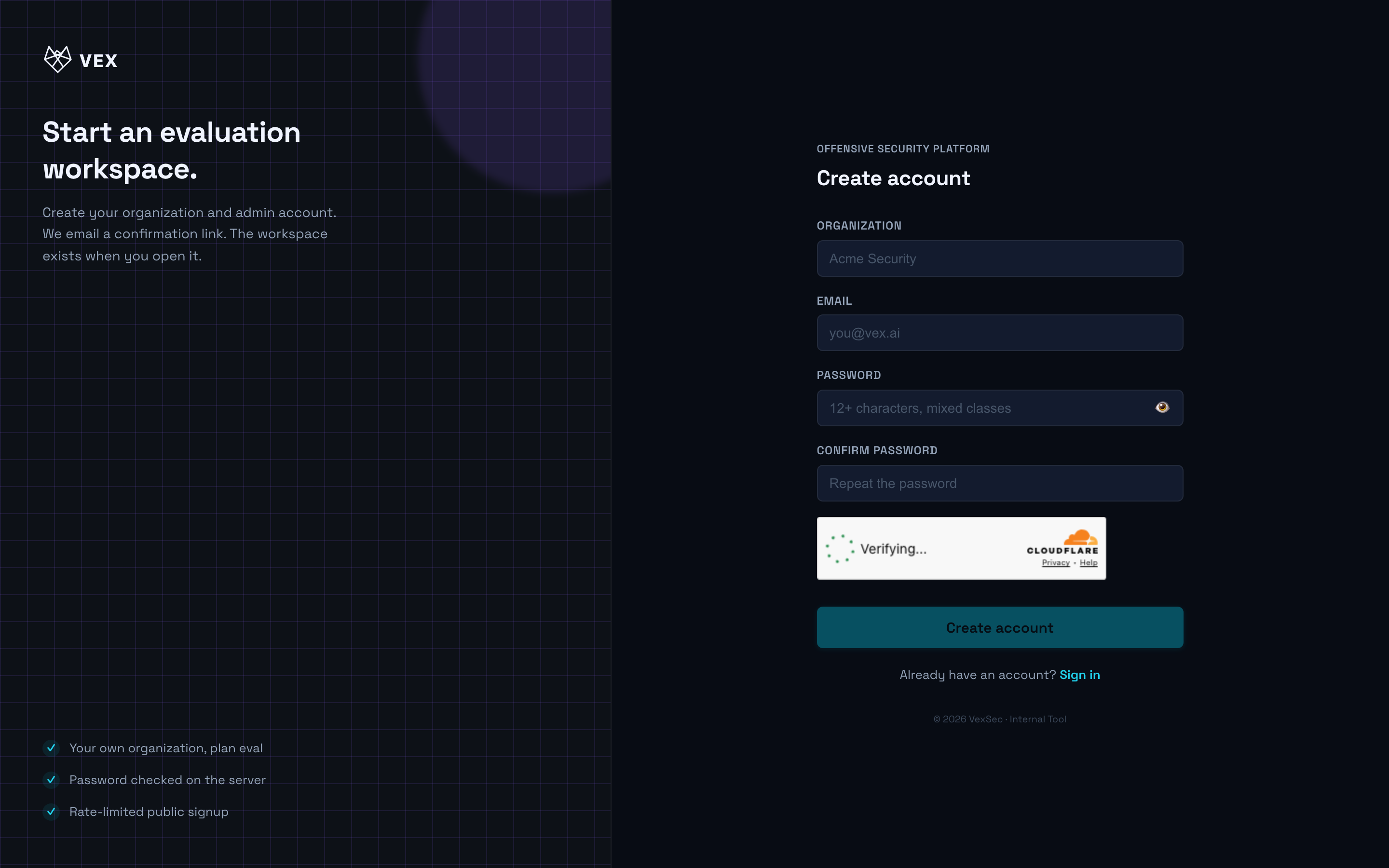
- If email verification is enabled, open the link in the verification email, then Log in.
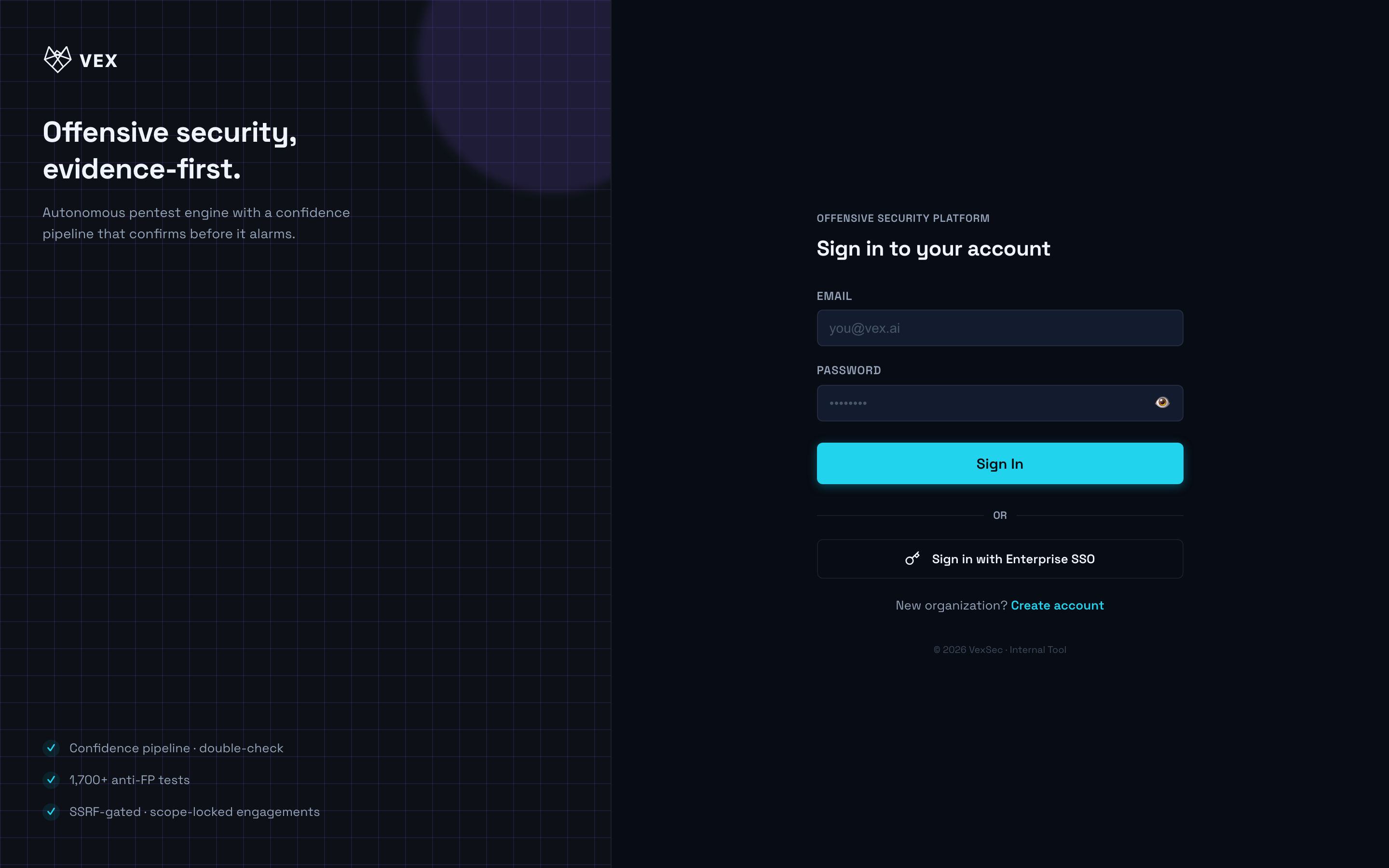
- Go to Pentest in the sidebar.
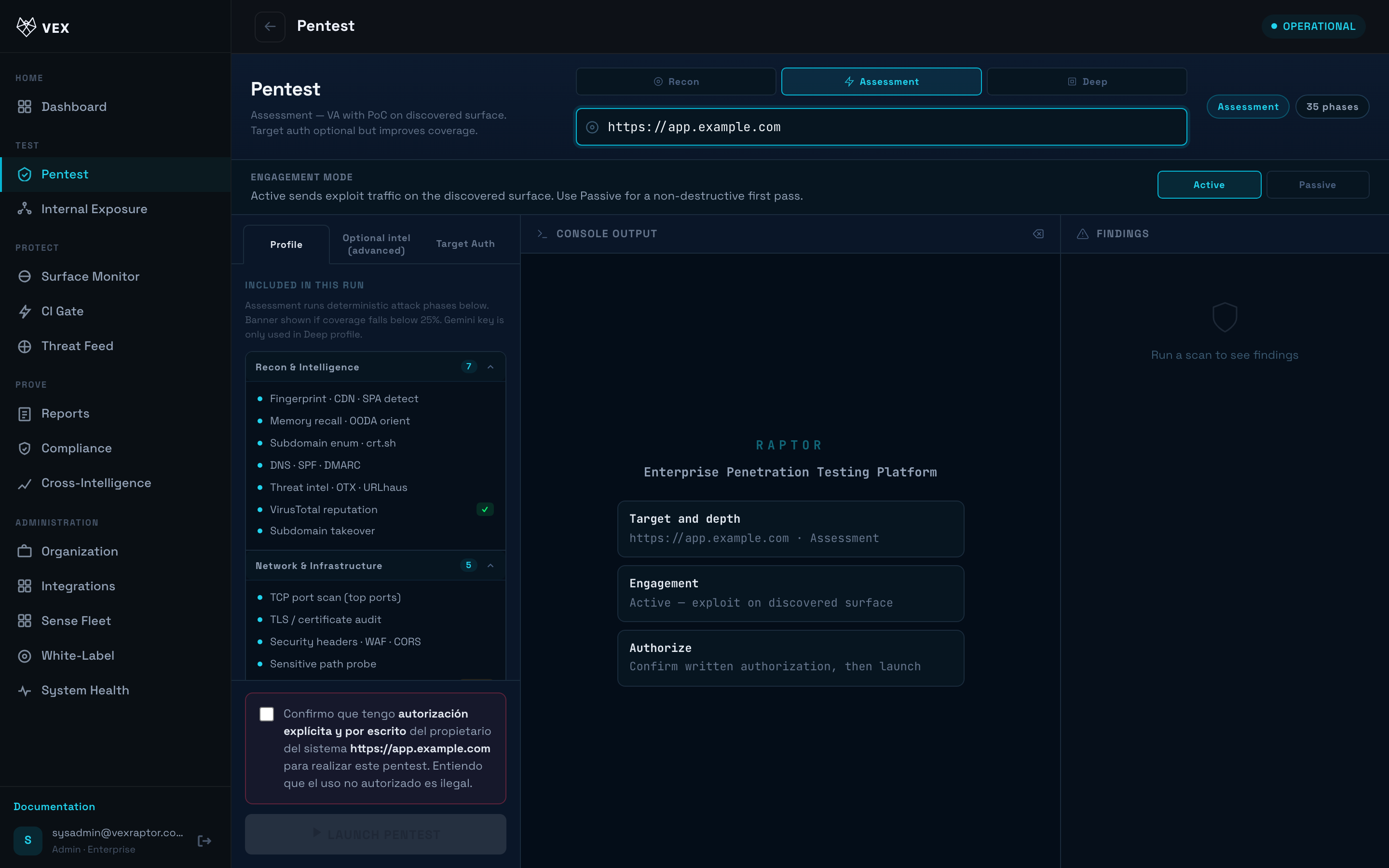
-
Enter
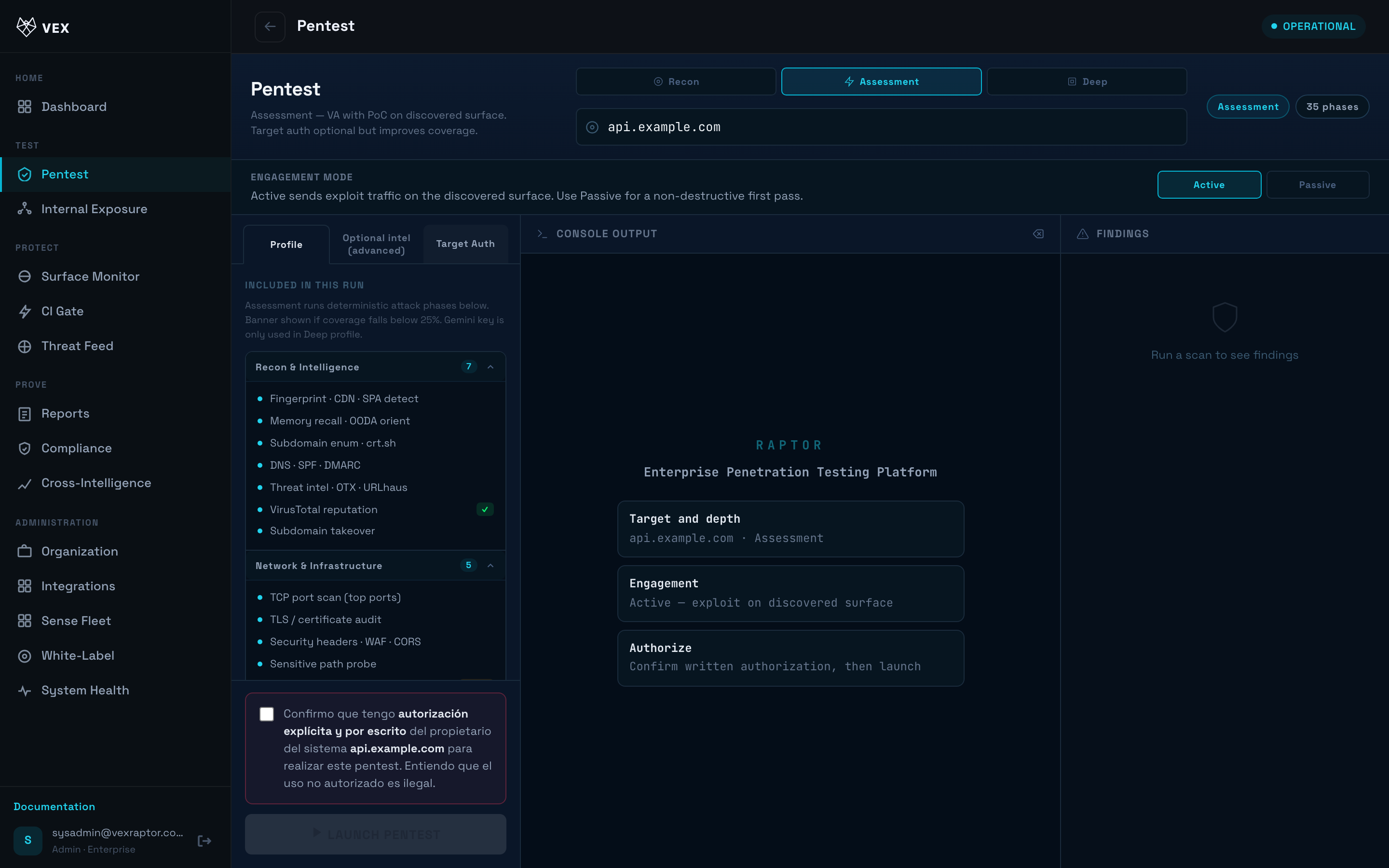
https://app.example.com(replace with your authorized target). -
Select Recon for a first quick pass, or Full for active testing. See Scan depths.
-
Click Start and watch the live timeline until the scan completes.
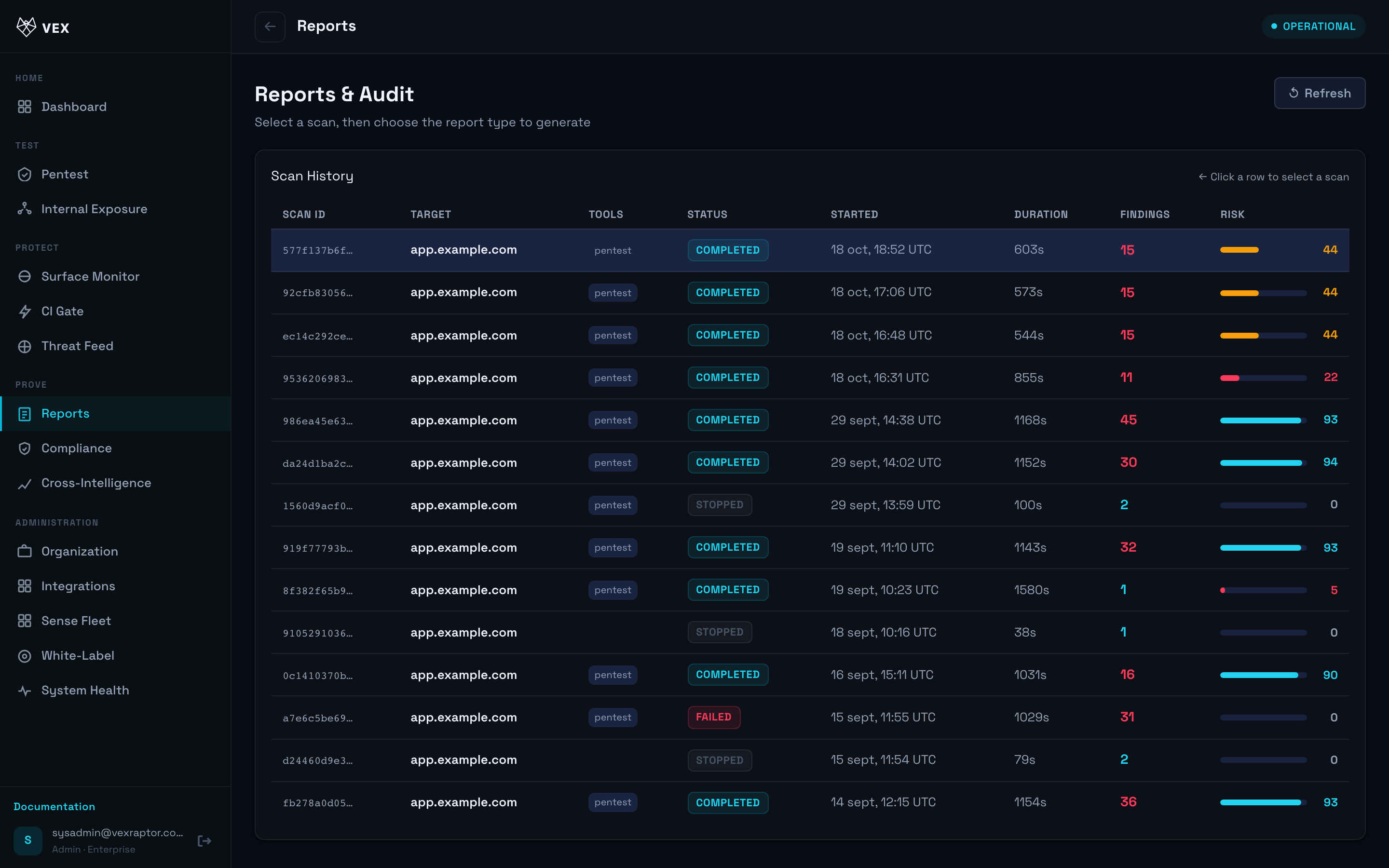
- Open Reports and select the finished scan to review findings.
What you will see
During the scan, phases appear in order (recon, then deeper phases depending on depth). Findings stream in with severity and confidence labels.
Common problems
- 403 domain not verified — follow the verification instructions in the error banner; external targets require proof of ownership in production.
- 429 quota exceeded — your organization hit its daily scan limit; try tomorrow or ask an admin about the plan.
Next steps
- Run scans — authentication, API mode, cancel.
- Read a report
- Responsible use